This feature allows Fleet Admins to assign a Safety Coach to a group of Drivers formally. Drivers must be a part of a group to have an assigned Safety Coach. Fleet Users need to have the Coach Drivers permission enabled to become a Safety Coach.
Enabling Coach Drivers' permission for a Role
| Note: Fleet Admins are given the Coach Drivers' permission by default. However, to become an assigned Safety Coach, Fleet Users must have a Role assigned to them with the Coach Drivers' permission enabled. |
1. Log in to the Fleet Dashboard and click the Admin icon in the bottom-left corner.
2. Click Fleet Users in the left-hand side menu.
3. Click Roles & Permissions.
| Note: You can enable the Coach Drivers permission when you’re creating a new role or editing an existing one. |
4. You can create a new role or edit an existing one.
a. To create a new role, click +Create Role.
b. To edit the existing role, click Edit from the Options dropdown menu.
5. The Create/Edit Role screen displays. Write the Name of Role.
6. Enable Coach Drivers permission.
7. Click Save/Create.
|
Note: The Coach Drivers permission enables the Fleet User to:
|
Assigning a Safety Coach to a group of Drivers
Through the Coach Assignment tab
1. On the Fleet Users tab, click the Coach Assignment tab.
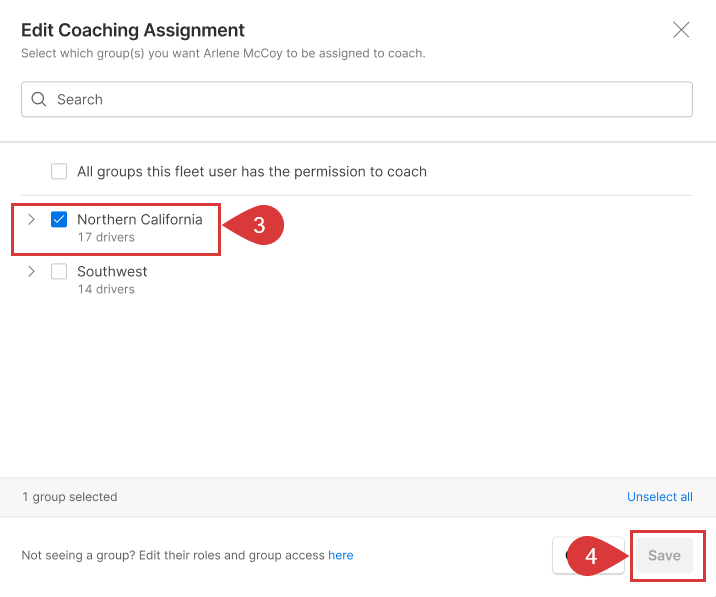
2. Click the three dots for the Fleet Manager you want to assign as a coach to Drivers and click Edit Coaching Assignment.
3. Select the groups on which you want the user to be an Assigned Coach. Unchecking a box means they won’t be an assigned coach for that group moving forward.
4. Click Save.
 Editing a Fleet User role
1. Log in to the Fleet Dashboard and click the Admin icon in the bottom-left corner.
2. Click Fleet Users in the left-hand side menu.
3. Click Edit Roles & Groups from the Options dropdown menu to edit the existing user.
| Note: If the Fleet User account already exists, ensure they have a Role with the Coach Drivers permissions enabled. |
4. Select the Fleet User Role and the Group(s) you want to apply the Role to. Once selected, the Fleet User has permission to coach this group of Drivers.
5. Once you enable the role on the groups, click the Coaching Assignment dropdown to assign the user as a coach for these groups. All groups with a coaching role enabled in the previous step appear here.
6. Select the checkbox next to the groups you want to assign the user as a coach.
7. Click Add.
FAQs
What is the difference between an Assigned and Permitted Safety Coach?
While both assigned coaches and permitted coaches can coach Drivers, an assigned coach is responsible for coaching specific Drivers, while permitted coaches are considered backup coaches and have permission to coach any Driver.
Assigned Coach
- The coach's name is displayed as Assigned Coach for the Driver throughout the Safety Hub.
- Once a coaching role (a role that has permission to coach) is selected for certain groups, the user can be assigned as a coach for some or all of these groups by selecting the groups in the dropdown from Coaching Assignment.
- Generally speaking, a core responsibility of these users would be to coach Drivers.
Permitted Coach
- These Fleet users have the Coach Drivers permission enabled, but their name will not be displayed as an Assigned Coach throughout the Safety Hub.
- A coach can only coach on groups for which the role has been selected but not explicitly assigned from the Coaching Assignment dropdown.
| Note: These Fleet users can be considered backup coaches. |
Share this with others